AI assistant for Windows
The right answer,
right when you need it.
A discreet copilot for interviews, meetings and study sessions. Ask for a hint on an exercise, get an answer suggestion when you're stuck, and leave the call with the summary ready — it only steps in when you ask.
Free to start · bring your own AI key (OpenRouter or Gemini)
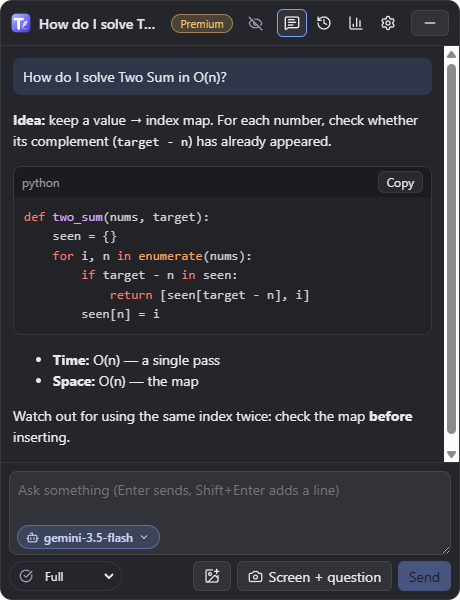
 LeetCode AssistPremium
One assistant, many ways to help
Pick a mode in the dock. Each one has the right prompt for the moment — and you can create your own.
Stealth mode
On your screen. Off the recording.
With stealth mode on, ThuccaAI doesn't show up in screenshots, recordings or screen sharing on Zoom, Meet and Teams. You still see everything as usual.
All from the keyboard
Global shortcuts work on top of any app, without taking focus away from what you're doing.
- CtrlEnterAsk about the screen
- CtrlEAdd a screenshot
- CtrlDListen to the call
- Ctrl⇧OHide everything
A summary ready when the meeting ends
Key points, decisions and next steps — and one click sends it where you already work.
Your AI, your cost
Connect your OpenRouter or Google Gemini key and pick the model. You only pay for what you use — and track the spend in a chart inside the app.
Simple pricing
Start for free. Cancel or pause Premium anytime, right in the app.
- 1 Download the app
- 2 Create your account
- 3 Subscribe in the app
Free
R$0 forever
- LeetCode Assist (1 screenshot per question)
- Interview / Meeting with live transcription
- 5 meetings with summary per month
- History of the last 10 sessions
7-day pass
R$16.90 one-time payment
- Everything in Premium for 7 days
- No automatic renewal
- Great for a week of interviews
Premium
R$29.90 per month
- Live suggestions on what to answer
- Live translation and every mode
- Stealth mode
- Up to 6 screenshots per question
- Unlimited summaries to Notion, Google Docs and Obsidian
- Custom modes and unlimited history
Subscriptions happen inside ThuccaAI: after installing, sign in and pick your plan in Settings › Subscription.
FAQ
Windows showed a warning during setup. Is it safe?
Yes. The SmartScreen warning shows up for new apps that don’t have a reputation with Windows yet. Always download from thucca.com and click More info › Run anyway. The installer doesn’t ask for admin rights and installs only for your user.
Do I pay for the AI separately?
Yes: ThuccaAI uses your own OpenRouter or Google Gemini key, so the cost of answers goes straight to your account with them (usually cents). The app shows how much you spent per day, model and session.
Does stealth mode work with any call app?
It uses the Windows feature that excludes a window from captures, so it works on Zoom, Google Meet, Teams, Discord, OBS and Print Screen. It doesn't hide the app from someone looking at your screen in person.
Does ThuccaAI join the meeting as a bot?
No. It runs on your computer and only listens when you press Listen — nobody on the call sees an extra participant.
Which languages does it understand?
Transcription detects the language of the conversation on its own. The app is available in English, Portuguese and Spanish, and answers come in the language you choose.
Can I use it on more than one computer?
Yes, on up to 2 computers. Premium is active on one at a time: opening it on another switches instantly.
Does it work on Mac?
Windows only for now.
Ready for your next interview?
Install it, connect your AI key and press Ctrl+Enter.
Download for WindowsWindows 10 and 11. Since ThuccaAI is a new app, Windows may show “Windows protected your PC” during setup: click More info › Run anyway.